 Transcripts
Recording
Manual recordings
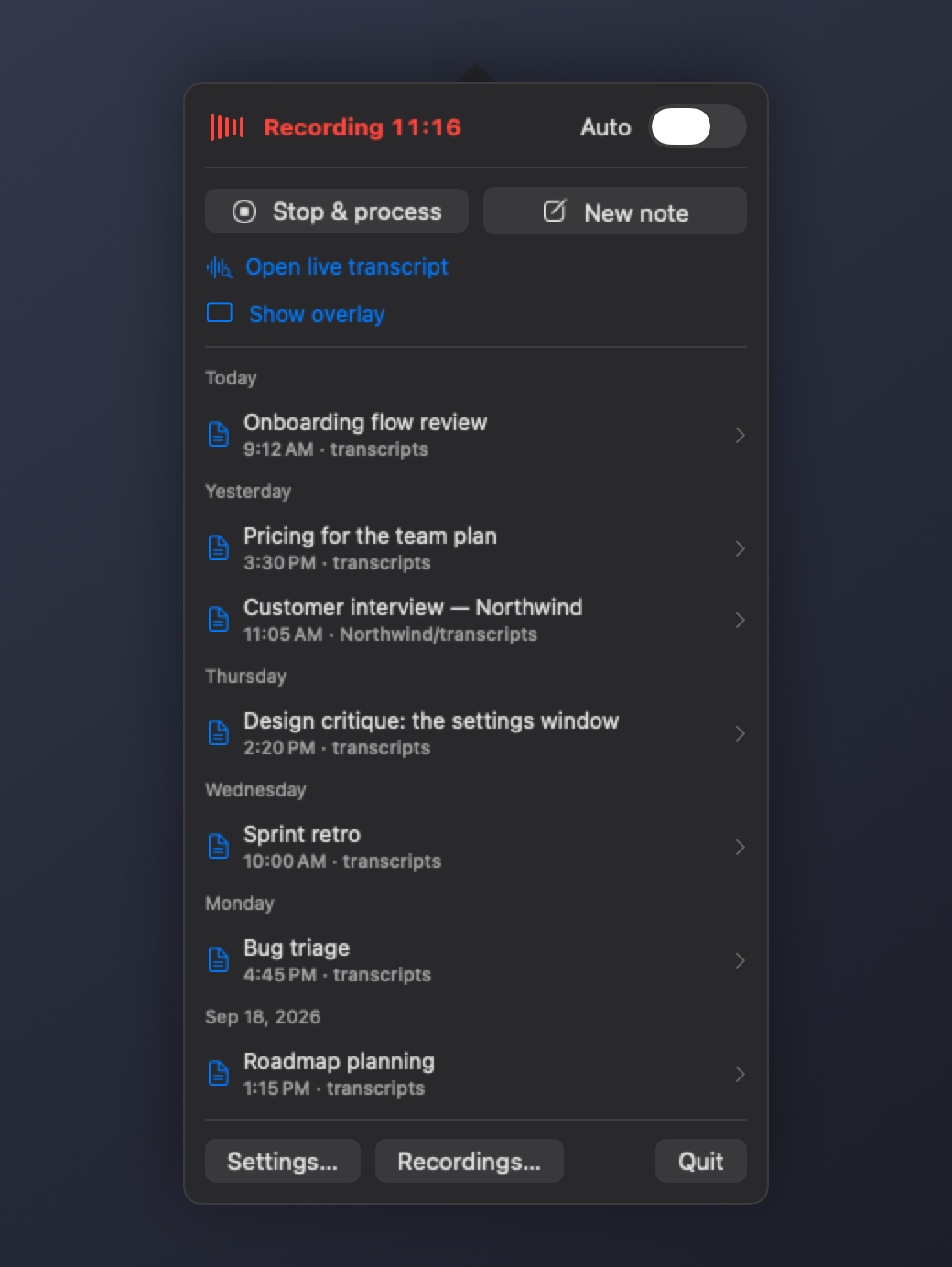
Start recording from the menu captures your microphone until you choose Stop & process. That is the whole interaction. Use it for a voice note, a thought you don't want to lose, or a conversation in the room.
Recording calls
Leave Auto on and Transcripts watches for calls. When you join a Teams, Zoom, Webex, Meet, Slack huddle or Discord call and your microphone goes live, it starts recording — and it records both sides: your microphone and the audio of the call, as two separate tracks mixed into one file.
Two tracks matter more than it sounds. Because your voice arrives on its own track, every word of yours is known to be yours with no guesswork. All the uncertainty about who said what is confined to the other side. A single mixed recording throws that away.
When the call ends, recording stops and processing begins.
Consent
Recording law varies by country and by state. Some places allow one participant to record; others require everyone to agree.
Settings ▸ General has a Consent mode:
- One-party — Transcripts records a detected call automatically.
- Two-party — Transcripts notifies you first and records nothing until you confirm you have told everyone.
Two-party mode is the honest default in jurisdictions that require all-party consent. Transcripts gives you a recorder; whether you may lawfully use it on a given conversation is yours to judge.
When the microphone is dead
A surprising number of lost recordings are not lost at all — they are silent, because the input was a webcam microphone on a closed laptop lid, or a headset that disconnected.
Transcripts watches for this. If the level stays at nothing while it is supposed to be recording, it tells you rather than handing you a silent file an hour later. Settings ▸ General lets you nominate preferred microphones in order, so a good one is chosen when it is present.
A silent microphone is usually a muted one, and the two look identical on a meter. When your input goes quiet while the other side of the call is still audible, the menu says so plainly and keeps saying it for as long as it is true:
> Your mic is silent. If you're muted that's expected — the other side is still > recording, and you resume the moment you unmute.
That distinction matters because the meter shows the louder of the two sides. A muted microphone on a live call still looks alive, and the one question worth answering — whether your own voice is being captured — is the one a meter cannot answer. Nothing is lost while you are muted: the other participants are recorded throughout, and your side returns the instant you unmute.
If you stop by mistake
Start recording again. You do not have to wait for anything.
The previous recording keeps processing in the background, and the menu shows which stage it is on and how long it has been going, so a long transcribe is visibly working rather than apparently stuck. Meanwhile the Start button is available the whole time.
If the meeting is still the same meeting, the two pieces are listed together as one call rather than as two unrelated recordings, so stopping in the middle costs you the seconds it takes to press record again, not the rest of the conversation.
Joining recordings back together
Sometimes a meeting ends up as more than one recording: you stopped by mistake, the app restarted at a bad moment, or you paused and picked back up.
Select them in the Recordings window — click one, then Command-click the others — and choose Merge. They are laid on a single timeline at the times they were actually recorded, so a gap between them stays a gap and everything after it keeps its timing. The result is re-transcribed and re-filed as one note, and the originals move to the Trash.
Merging is always something you ask for, never something the app decides. It cannot tell "I stopped my own recording by mistake" from "that call ended and the next one started", and those look identical from the outside. Guessing wrong in the second direction would write one meeting's words into another's folder, which is much worse than leaving you two notes to join by hand.
So before it goes ahead it tells you what it noticed:
- the pieces do not look like the same meeting
- there is a long gap between two of them
- they were recorded on different days
None of those stop you. You were in the room and the app was not. They are there so the one case that matters — two different calls, selected by accident — is hard to walk into without seeing it.
Pausing, and what happens if things go wrong
Audio is written to disk continuously, not held in memory and saved at the end. If the app quits, the machine sleeps, or the power goes, the audio recorded up to that moment survives, and Transcripts offers to resume the take when it starts again.
If Transcripts restarts while a recording is running — you quit it, it crashed, or it was updated — it picks the same recording back up rather than ending it. The piece it had already captured is set aside, recording starts again within a second or two, and when you finally stop, every piece is reassembled into one recording on a single timeline. The only trace is a couple of seconds of silence where the app was away.
The menu says so while it is happening ("Resumed after relaunch"), so a restart is never something you have to take on faith.
This holds for as long as the gap is short — about ten minutes. A marker left behind by a crash days ago is not resumed, because starting to record out of nowhere is worse than filing what was captured.
Phone calls
iOS does not let any third-party app record a phone call. No audio-session mode routes call audio to an app, and during a call iOS takes the microphone exclusively, so Transcripts cannot capture even your own side.
Transcripts notices that the audio session has been taken away and stops cleanly, keeping what it already recorded, rather than being cut off mid-capture and leaving a take that claims forty minutes and holds four. The same applies to anything else that seizes the session — Siri, an alarm, another app recording.
What you can do instead:
- Record the call with the Phone app (iOS 18.1 and later announces itself audibly to everyone on the line, and saves the recording and a transcript into Notes), then share that recording into Transcripts — it lands in your library like any other recording, syncs to the Mac, and is transcribed and attributed properly there.
- Put the call on speaker and record it with an iPad or Mac in the room. Crude, but it captures both sides — and on the Mac you get speaker names.
Importing audio recorded elsewhere
Anything the share sheet can hand over — a call recording exported from Notes, a Voice Memo, an interview someone emailed you — can go into Transcripts. Share it and pick Transcripts, or use Open with from Files.
Imported recordings keep their own timestamp, not the moment you imported them, so a call recorded this morning and shared tonight files under this morning — and joins the right session on the Mac.
Next: The live transcript